Latest Post
Showing posts with label Linux. Show all posts

BackTrack 5 R3 Released


BackTrack 5 R3 Released! Aug 13th, 2012 
You can download the various flavours of backtrack. The new and latest version of the BackTrack is BackTrack 5 R3. BackTrack 5 R3 comes with the various new tools which are more powerful than the old version of Backtrack You can download it from the official website of BackTrack

http://www.backtrack-linux.org/downloads/ 


Make Bootable Live USB Of BACKTRACK 5 R3 With "YUMI 0.1.0.7"

Required Tools and Software :
  1. USB Thumb Drive of Minimum 4GB
  2. Download, .ISO of Backtrack 5 R3
  3. Download, YUMI 0.1.0.7 Tool

 Make Bootable Live USB Of BACKTRACK 5 R3 Follow the Below Steps:

Step1.  Download and save the BACKTRACK 5 R3 .ISO Image file. (To Download Latest version of BACKTRACK 5 R3 Click Here)

Step2.  Download YUMI 0.1.0.7 Tool , run it and follow all the instruction given below (To Download Latest version of YUMI 0.1.0.7 Tool Click Here) :

 1.  Click On I Agree Button :


2.  Select USB Device (Mini 4 GB) from The List and also select the OS from the list of OS's provided by the YUMI Boot Tool, Here we are going to boot the BACKTRACK 5 R3 hence select BackTrack from the list and Browse the .iso file of Backtrack 5 R3 as given below :


 3.  Select Backtrack 5 R3 .iso file from HardDrive By Clicking on Browse Button :


4.  After selecting BackTrack 5 R3 ISO click on Create Button.


5.  Then click on Yes Button.


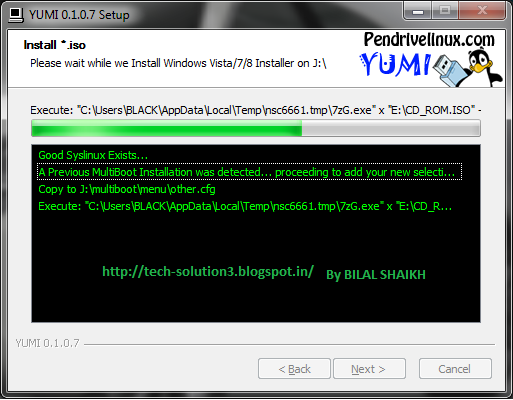
6. Wait Until the Process Finishes.
 

After the Process Finishes your USB Device is ready  to Boot BackTrack 5 R3 From USB.

To Run this BackTrack 5 R3 From USB, Set First Bootable Devise To USB in BIOS BOOT Sequence.
If you have any Question or problem You can Comment below.......
                                                        Enjoy!!!!!!!!!!!!!!
 

Mounting a Windows XP NTFS partition in Linux


How to access a Windows XP or Vista NTFS partition from Linux. The following tutorial explains how to gain access to a Windows NTFS partition using Linux. Reading or accessing NTFS partitions in Linux is important for many reasons. Some users repair Windows Operating environments using Linux, while others use a dual boot operating environment and would like to have access to their Windows File system.
The good news is that this is not a complicated task to accomplish. As a matter of fact, for those using a Linux version derived from Debian, (I.E. Ubuntu, Knoppix, etc…) the process can be accomplished in a matter of seconds.
How to Mount a Windows NTFS file system partition in Linux:
NOTE: In step four of the following tutorial, replace hdx1 with your actual partition found in step two. For example hda1, hdb2, sda1, etc.
  1. Open a terminal and type sudo su
  2. Type fdisk -l (note which partition contains the NTFS file system)
  3. Type mkdir /media/windows (This directory is where we will access the partition)
  4. Type mount /dev/hdx1 /media/windows/ -t ntfs -o nls=utf8,umask=0222
  5. Type cd /media/windows (Moves us to the windows directory)
  6. Type ls to list the files on the NTFS partition
Notes: Alternately, you can navigate to the media/windows directory outside of terminal to view the files.
To unmount the Windows NTFS partiton, from the terminal simply typeumount /media/windows/
 

Download Ophcrack Free


What Is Ophcrack?

Ophcrack is a free Windows password cracker based on rainbow tables. It is a very efficient implementation of rainbow tables done by the inventors of the method. It comes with a Graphical User Interface and runs on multiple platforms.


Description
·         Opchrack can crack passwords for Windows 7, Windows Vista, and Windows XP.
·         Ophcrack can recover 99.9% of passwords from Windows XP, usually in a matter of seconds. Any 14-character or smaller password that uses any combination of numbers, small letters, and capital letters should be crackable.
·         Ophcrack can recover 99% of passwords from Windows 7 or Windows Vista. A dictionary attack is used in Windows 7 and Vista.
·         The Ophcrack LiveCD option allows for completely automatic password recovery.
·         LiveCD method requires no installation in Windows, making it a safe alternative to many other password recovery tools.
·         No Windows passwords need to be known to use the Ophcrack LiveCD to crack your Windows passwords.

Features:

·         Software is freely available for download online
·         Passwords are recovered automatically using the LiveCD method
·         No software installation is necessary to recover passwords
·         No knowledge of any existing passwords is necessary
·         Ophcrack works with Windows 7, Windows Vista, and Windows XP
Requirements :
·         Some antivirus programs mistakenly identify Ophcrack as a Trojan or virus (see Guide Review below)
·         506 MB (7/Vista) / 425 MB (XP) LiveCD ISO image must be downloaded
·         LiveCD ISO image must be burned to a disc before being used
·         Passwords greater than 14 characters can not be cracked
 
 
Support : BILAL SHAIKH | BILAL SHAIKH | ALL TECHNO GEEKS
Copyright © 2011. All Techno-Geeks - All Rights Reserved
Template Created by BILAL SHAIKH Published by ALL TECHNO GEEKS
Proudly powered by Blogger