Latest Post
Showing posts with label Windows Group Policy Editor (GPEDIT.MSC) Tricks.. Show all posts

Provide Limited Program Access To Non-Administrative Users In Windows 7 With GPEDIT.MSC


AppLocker Specify exactly what is allowed to run on desktops with the AppLocker feature in Windows 7. AppLocker provides the flexibility to allow users to run the applications, installation programs, and scripts they need to be productive. Learn how you can realize the security, operational, and compliance benefits of application standardization by using AppLocker.

To use AppLocker You will need to open the Windows Group Policy Editor By Typing gpedit.msc in Run.


You can find AppLocker in Windows Setting > Security Setting > Application Control Policy > AppLocker

Now Click On Configure Rule Enforcement 


In Enforcement tab, select Configured under executable rule by keep Enforcement rule as it is.
Now Click on Apply > Ok


Now click on Executable Rule >  Right Click Executable Rule > Click On Create New Rule. >>


Select Deny and then Click on Select Button To select particular User or Group to which we have to restrict access of particular Program >>


Click On Advance Button To Select User or Group >>


Click On Find Now Button To View all User or Groups Associated with the Windows. Select the required User or Group from the list of users to provide deny action of particular Program to that user and click on Ok >>


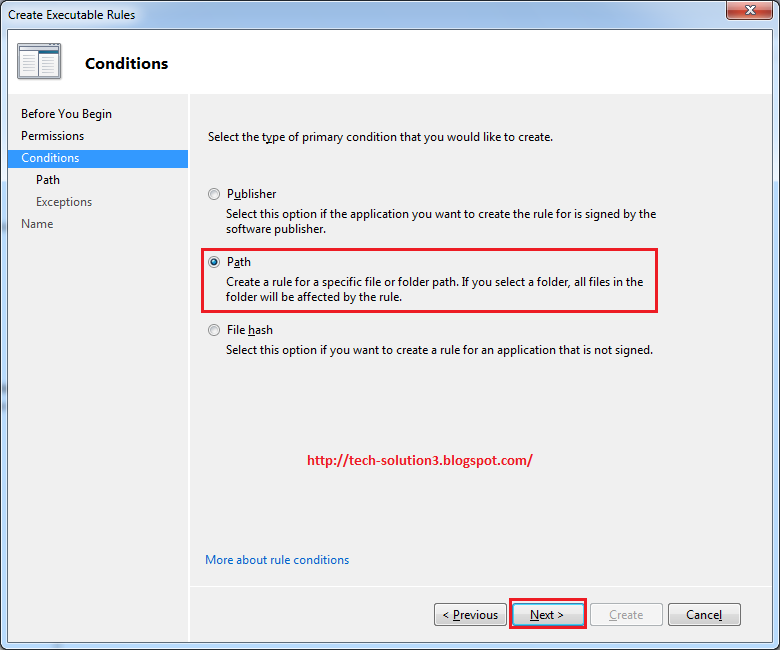
Click on Path and Next >>

Click on Browse File Button To Select the .exe file of application which you want to Deny >>
Note : Similarly U can Select the folder of that application to Block its access.


Go through the C:/Program Files / <Folder Name of Application which is to be deny> / <Application File (.exe)> and click on Open as shown below >>


Now it showing Like this >>


In the Executable rule you can see Action is Deny for selected Application >> 


After Creating Rule Make Sure that Application Identity Service  is started and set this service to Automatic.
1.Run Type services.msc hit enter.
2.Find Application Identity Service from the List of all Services.
3.Right click on Application Identity Service Do Following Configuration :

Set Startup type as Automatic 


Now, If blocked user trying to Access the Blocked Program or Application, it get the Following Message:


If U have any problem related to any of the step U can ask me By posting Ur Comment Below >>

                                                                       Enjoy !!!!!!!!!!!


Lock Application In Windows Using GPEDIT.MSC


It is possible to lock the application in windows 7 using the AppLocker feature.
AppLocker Specify exactly what is allowed to run on desktops with the AppLocker feature in Windows 7. AppLocker provides the flexibility to allow users to run the applications, installation programs, and scripts they need to be productive. Learn how you can realize the security, operational, and compliance benefits of application standardization by using AppLocker.

To see how to use AppLocker to lock any application Click Here 


How to Hide a Drive with GPEDIT.MSC

1.       Open RUN and type Gpedit.msc and press Enter
2.       Go to User Configuration > Administrative Templates > Windows Component > Windows Explorer 


 3.       Now on the right Hand side i.e. Settings Pane look for Hide these specified drives in My Computer.

4.       Double Click on it and Enable it, now choose from the drop down box which drive you want to hide.
5.       Click on Apply and OK.

6.       Logoff and Re-Login to see changes.
 

What is Windows Group Policy Editor (GPEDIT.MSC)? And how to use GPEDIT.MSC


            This post describes how to use the Group Policy Editor to change local policy settings for the computer and users of the computer.

Uses of Group Policy
In Microsoft Windows 7, you use Group Policy to define user and computer configurations for groups of users and computers. You create a specific desktop configuration for a particular group of users and computers by using the Group Policy Microsoft Management Console (MMC) snap-in. The Group Policy settings that you create are contained in a Group Policy Object (GPO), which is in turn associated with selected Active Directory containers, such as sites, domains, or organizational units (OUs). With the Group Policy snap-in you can specify policy settings for the following:

Registry-based policies.
These include Group Policy for the Windows XP operating system and its components and for programs. To manage these settings, use the Administrative Templates node of the Group Policy snap-in.
 Security options.
These include options for local computer, domain, and network security settings.
 Software installation and maintenance options.
These are used to centrally manage program installation, updates, and removal.
 Scripts options.
These include scripts for computer startup and shutdown, and user logon and logoff.
Folder redirection options.
These allow administrators to redirect user’s special folders to the network.

To Open Group Policy:

In two ways you can open Windows Group Policy As given below

1.     Start > run > type “ gpedit.msc”  > Ok (Shortcut key for Run :Windows)


                                                                          OR

2.    Go to  C:\WINDOWS\system32 and find the gpedit.msc file and double click it to open.
 
 
Support : BILAL SHAIKH | BILAL SHAIKH | ALL TECHNO GEEKS
Copyright © 2011. All Techno-Geeks - All Rights Reserved
Template Created by BILAL SHAIKH Published by ALL TECHNO GEEKS
Proudly powered by Blogger